
Overview
Once your organisation has purchased the Data Export (database tables) add‑on and the pre‑built Power BI Dashboard, a member of the Onefile team will provide you with a .pbit Power BI Template file.
Important
- Please ensure Power BI Desktop is installed on your device.
- You must have Admin access to your Power BI workspace before beginning installation.
Loading the Power BI Dashboard Template
- Open the OnefileDashboardExample.pbit file in Power BI Desktop.
- You will be prompted to enter:
- DataExport_Server
- DataExport_Database
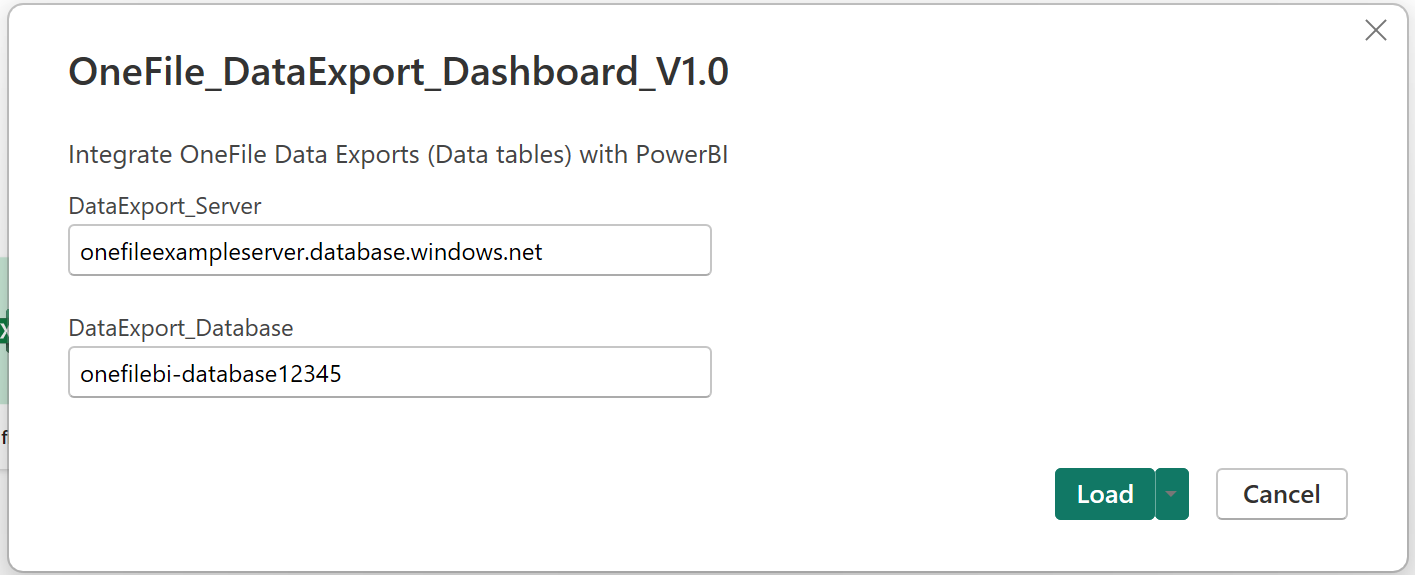
- These details will be provided by Onefile a few working days after purchase.
- Select the authentication method: Database.
- Enter your Username and Password*.
- Click Connect.
Once authenticated, Power BI will load the data directly from your Data Export SQL database, and the dashboard will populate automatically.
Saving and Publishing the Power BI Report
In Power BI Desktop
- Click File.
- Select Save As and save the report to a secure location.
The report will be saved as a .pbix file. - Go to the Home tab and click Publish.
- Select the destination workspace (e.g. My Workspace or an organisational workspace).
- Click Select to publish the report.
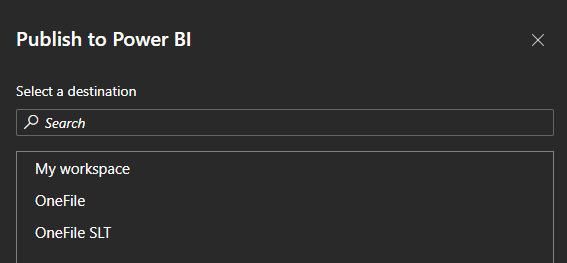
Once published, the rest of the configuration takes place in the Power BI App.
Setting Up a Scheduled Refresh
- Open the Power BI App and navigate to the workspace where you published the report.
- Locate the Semantic Model (dataset) for the Onefile Dashboard.
- Hover over the row and click Schedule refresh.
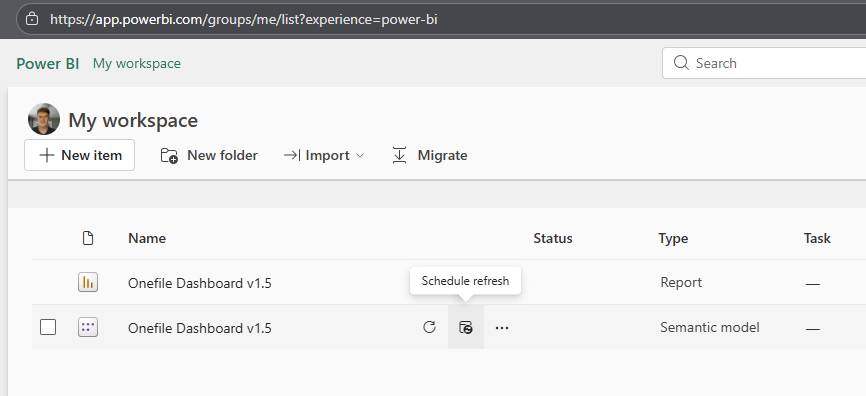
- Under Refresh, enable Configure a refresh schedule.
- Keep the refresh frequency set to Daily.
- Click Add another time.
- Select a time around 6am — this aligns with when the latest data is imported into your Azure database.
- Click Apply.
Managing Workspace Access
To provide access to a workspace:
- Go to the workspace in the Power BI App.
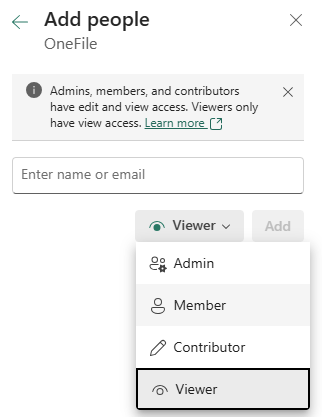
- Click Manage access.
- Select Add people or groups.
- Search for the user or group.
- Choose their access level (e.g. Viewer for read‑only access).
- Click Add.
Sharing the Power BI Report
- Locate the published report in your workspace.
- Hover over it and click the Share icon.
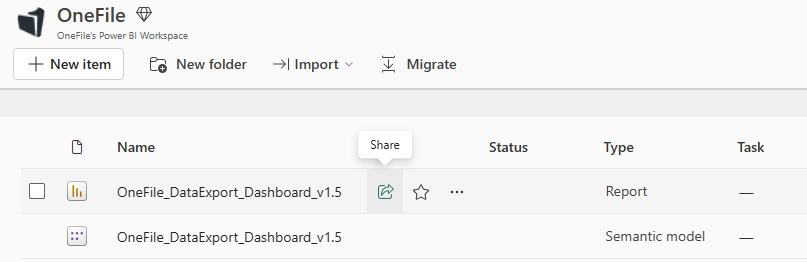
- Search for the user or group you wish to share access with.
⚠️ Warning
Onefile are not responsible for providing support on Power BI usage, workspace configuration, or report sharing setup. Please consult official Microsoft Power BI documentation before making changes.
Terminology
The terminology used in this article may differ depending on your Centre’s setup.
Need Help?
If you require assistance with Onefile Data Export setup, please contact Onefile Support or your internal technical team.