
✨ New feature alert
This feature is available from Wednesday 14 October 2026.
Overview
This guide walks you through how to create a new entry in your Learning Journal — whether it's a reflection, an activity, or feedback. Learning Journal entries help track progress, record experiences, and contribute to off-the-job training evidence.
User Roles
This feature can be used by:
- Learner
- Assessor
- Trainee Assessor
Steps to Create a Learning Journal Entry
- Access the Learning Journal. Click Learning Journal in the navigation menu, then click "Welcome back! Click here to start your journey."
- Fill in your journal entry:
- Title — give your entry a clear, relevant name.
- Category — select the category (for example, Reflection, Activity, or Feedback).
- Description/Reflection — write your thoughts, experiences, or feedback in detail.
- You can also link criteria and choose visibility options for the entry.
- Add your timesheet. Go to the Timesheets tab and select the date and time when the activity or reflection took place.
- Set the off-the-job options.
- Off the Job — tick this if the activity should count towards OTJ hours.
- In Paid Hours — tick this if the activity took place during paid working hours.
- Add feedback (optional). Learners, or any user with access to the journal entry, can leave feedback.
- Save the entry. Once complete, click Save or Submit to add the entry to your Learning Journal.
⚠️ Important: If you can't see the off-the-job options, they haven't been enabled for the selected category by your Centre Manager.
Tips & Notes
- Use clear titles and detailed descriptions to support high-quality evidence.
- OTJ settings depend on the category configuration set by your Centre.
- Submitting entries promptly helps maintain an accurate learning record.
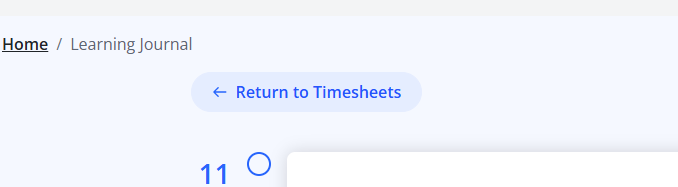
- If you open a journal entry from Tasks, Timesheets, or the Journal Report, a button at the top of the journal now takes you back — Return to Tasks, Return to Timesheets, or Return to Report.
Terminology
The terminology used in this article may differ depending on your Centre's configuration.
Related Articles
Need Help?
If you need assistance, please contact Onefile Support or your internal support team.