
✨ Updated feature alert
This feature update is available from Thursday, 5th November 2026.
Overview
Interaction templates let you create reusable email and text communications. They support consistent messaging across your Centre and save time when sending frequent or repeated communications. Templates can be sent to learners, assessors or employers.
What's Changed?
| Before | From 5 November 2026 |
|---|---|
| Interactions could only be sent to learners. | A new User role dropdown lets you send to a Learner (default), Assessor or Employer. Existing templates stay set to Learner. |
| One email was sent per learner. | For assessors and employers, Consolidate email sends one email per recipient listing all their matching learners, with an optional learner table. |
User Roles
This feature can be used by:
- Admin
Only Admin users can create interaction templates. Other roles may be able to use templates depending on Centre permissions.
Steps to Create an Interaction Template
- Click Interactions from the main menu.
- Click Templates to view all existing interaction templates.
- Click Create template.
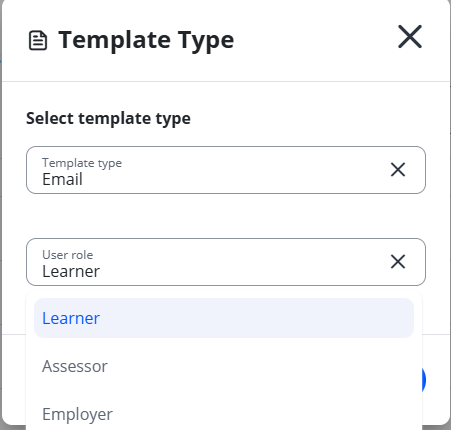
- Select the template type: Email or Text.
- Click Create template again to open the template editor.
- In the User role dropdown, choose who receives the interaction: Learner, Assessor or Employer.
- Write your message and save the template.
Sending One Email per Assessor or Employer
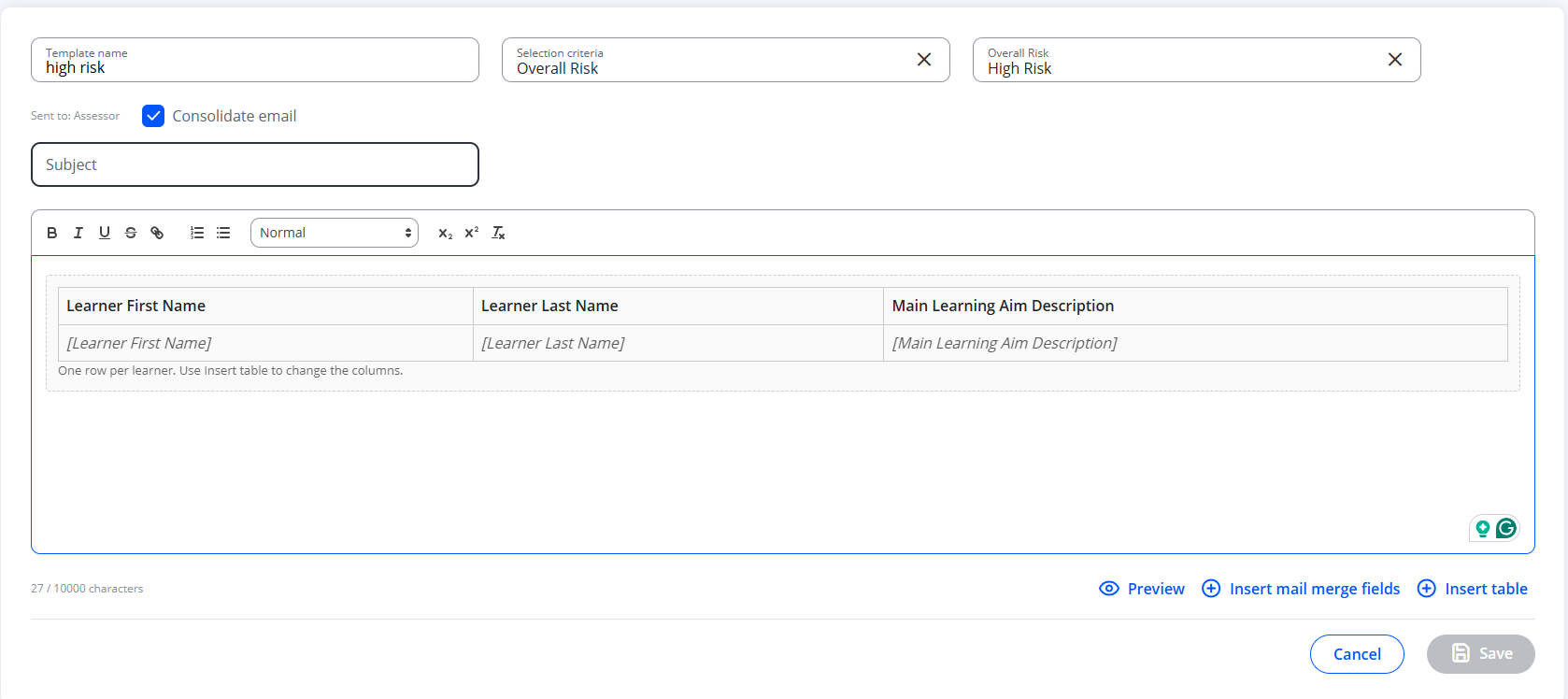
When the User role is Assessor or Employer, you can send each recipient one email that lists all their matching learners, instead of one email per learner.
- Set the User role to Assessor or Employer.
- Tick Consolidate email.
- To include a learner table, add it to the email and choose its columns from the mail merge fields.
- Save the template.
Tips & Notes
- ⚠️ Email templates can contain up to 10,000 characters.
- ⚠️ Text templates are limited to 140 characters per message.
- Consolidate email is only available when the User role is Assessor or Employer.
- You can exclude specific learners from bulk communications via the learner's profile.
- To send interactions to learners through WhatsApp, see How to Send WhatsApp Messages to Learners from Engage
Terminology
The terminology used in this article may differ depending on your Centre's configuration.
Related Articles
- Enable Interactions
- Set Interaction Occurrences
- View Engage Interaction history
- How to Send WhatsApp Messages to Learners from Engage
Need Help?
If you need assistance, please contact Onefile Support or your internal support team.