
✨ New feature alert
This feature is available from Wednesday 28 October 2026.
Overview
Centre Managers can now add Inclusion fields to ILP templates. When an ILP is generated, each field is filled with the learner's Inclusion data at that moment and shown as a table, with one row per record.
User Roles
This feature can be used by:
- Centre Manager
- ILP template owners
The New Inclusion Fields
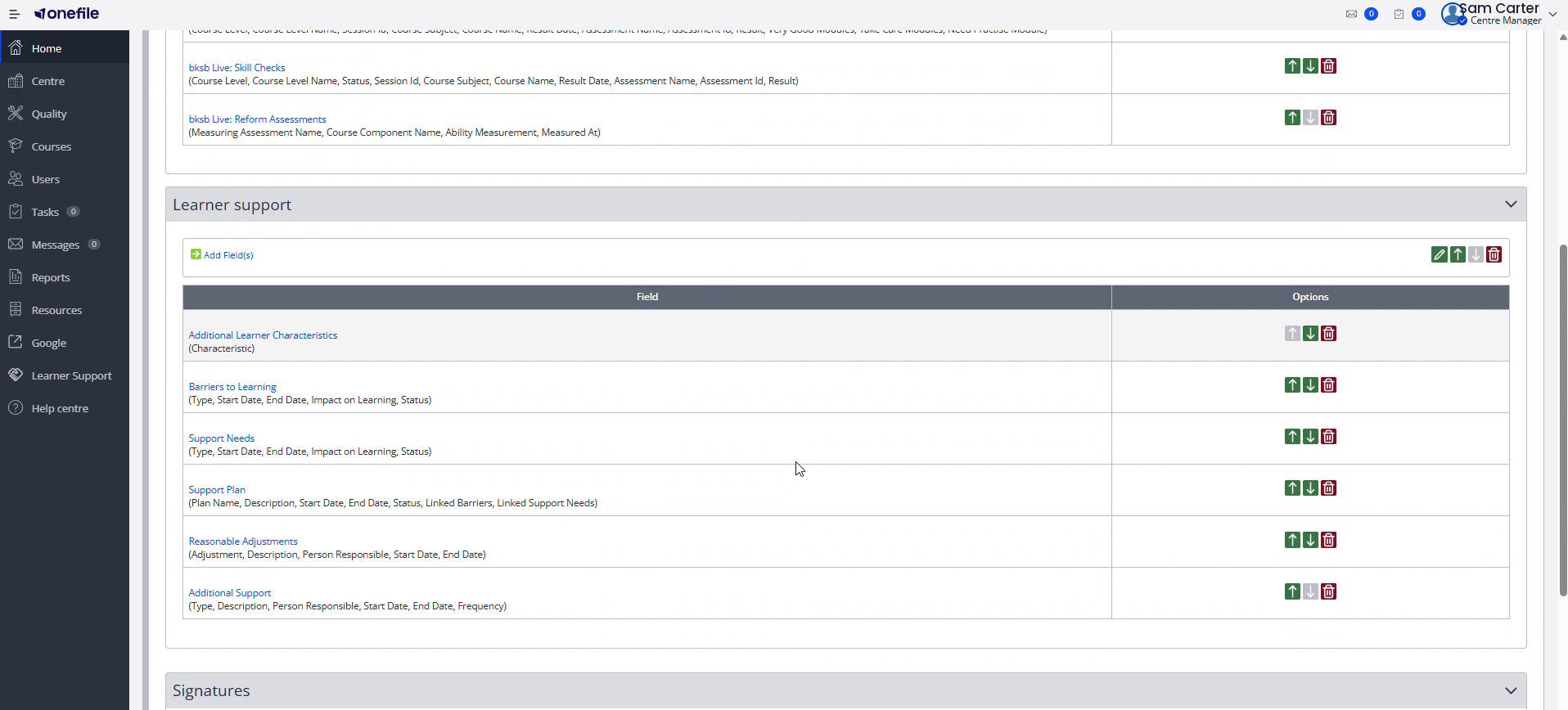
The new fields are in an Inclusion section of the template designer, which appears only for centres using the Inclusion module. Each field can be added on its own.
| Field | What it shows |
|---|---|
| Additional Learner Characteristics | The learner's additional characteristics. |
| Barriers to Learning | Type, start and end dates, impact on learning, and status. |
| Support Needs | Type, start and end dates, impact on learning, and status. |
| Support Plan | Plan name, description, start and end dates, status, and linked barriers and support needs. |
| Reasonable Adjustments | Adjustment, description, person responsible, and start and end dates. |
| Additional Support | Support recorded within a support plan: type, description, person responsible, dates, and frequency. |
Steps to Add Inclusion Fields to a Template
- Open the ILP template in the template designer.
- Create or open the section where you want the Inclusion data, then select Add Field(s).
- Add the Inclusion fields you want to include, each on its own.
- Save the template.
⚠️ Important: If the learner has no visible records for a field, that table is left out of the ILP.
Tips & Notes
- Each field is filled with the learner's Inclusion data at the moment the ILP is generated, so generate the ILP once the records are up to date.
- Only add the fields you need — empty ones are simply left out of the finished ILP.
Terminology
The terminology used in this article may differ depending on your Centre's configuration.
Related Articles
Need Help?
If you need assistance, please contact Onefile Support or your internal support team.