
User Roles
This feature can be used by the following user roles:
- Centre Manager
- User Manager
- Centre Monitor
Overview
The Employer Report provides an overview of employer accounts linked to your Centre. It allows you to quickly review key employer details, their verification status, and the number of learners associated with each employer.
Steps
How to Access the Employer Report
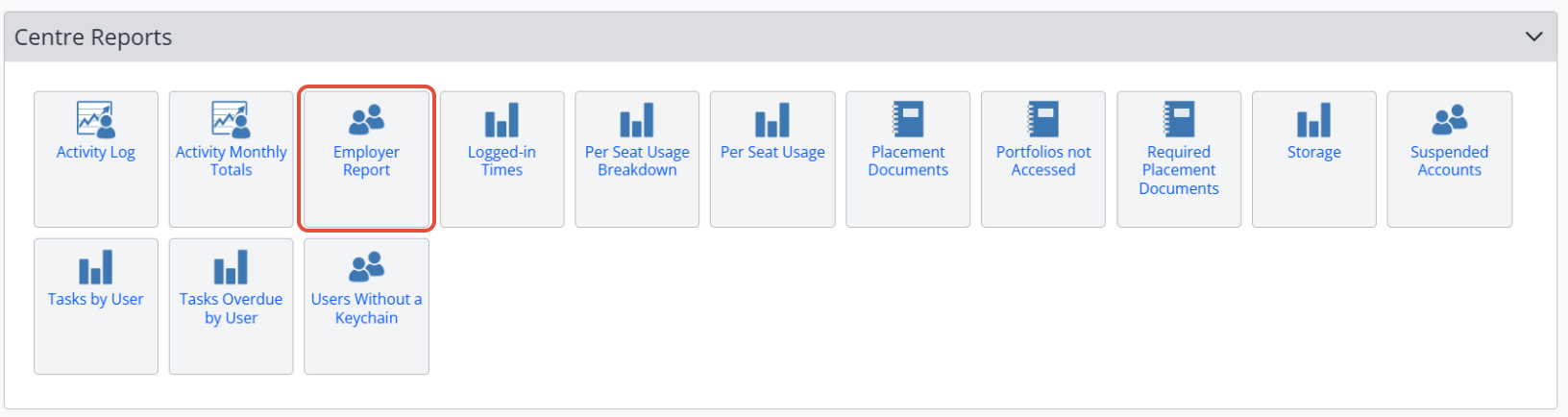
- Click Reports on the left-hand navigation bar.
- Scroll to the Centre Reports section.
- Click Employer Report.
What the Employer Report Shows
The report includes the following information:
- Employer Name
- Placement
- Primary Email Address
- Email Verified Status
- Alerts Enabled (whether the employer has notifications turned on)
- Number of Linked Learners
Tips & Notes
- Use this report to ensure employer contact information is up-to-date.
- Verification and alerts status can help identify communication issues.
- Filtering or exporting the report (if enabled) can support audit or compliance processes.
Terminology
The terminology used in this article may vary depending on your Centre configuration.
Need Help?
If you encounter any issues or require additional support, please contact Onefile Support or your internal support channels.