
Overview
The Assessor Caseload Report displays assessors and their assigned learner numbers. However, assessors will not appear in this report if their Target Caseload is set to 0. This guide explains how to update the Target Caseload so all assessors are displayed correctly.
User Roles
This information applies to users who manage assessor settings, typically:
- Centre Manager
- User Manager
Why an Assessor Is Missing from the Report
If an assessor’s Target Caseload value is set to 0 on their account, the system excludes them from the Assessor Caseload Report.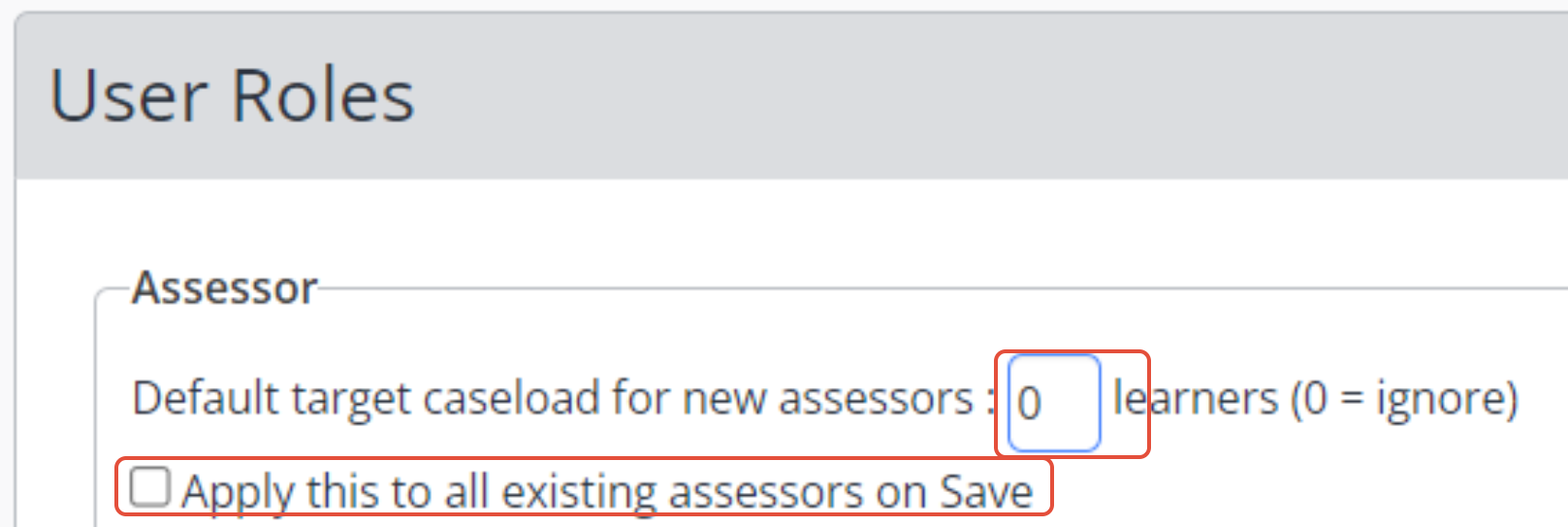
Steps
How to Update an Assessor’s Target Caseload
- Go to Settings for the assessor’s user account.
- Locate the Target Caseload field.
- Change the value from 0 to a positive number (e.g., 1, 10, 20).
- Tick the relevant setting below the field (if applicable).
- Click Save.
Once updated, the assessor should now appear in the Assessor Caseload Report.
Tips & Notes
- All assessors must have a non‑zero target caseload to appear in the report.
- You can set different target caseloads depending on workload expectations.
- If assessors still do not appear, check their permissions and learner assignments.
Terminology
Terminology used in this article may differ depending on your Centre’s internal configuration.
Need Help?
If you need assistance or have questions, please contact Onefile Support or your internal support team.